1. Log In and Explore the Dashboard
When you first sign in at matildaml.com, you'll land on your Dashboard, where you can see any existing Spaces or create a brand-new one.
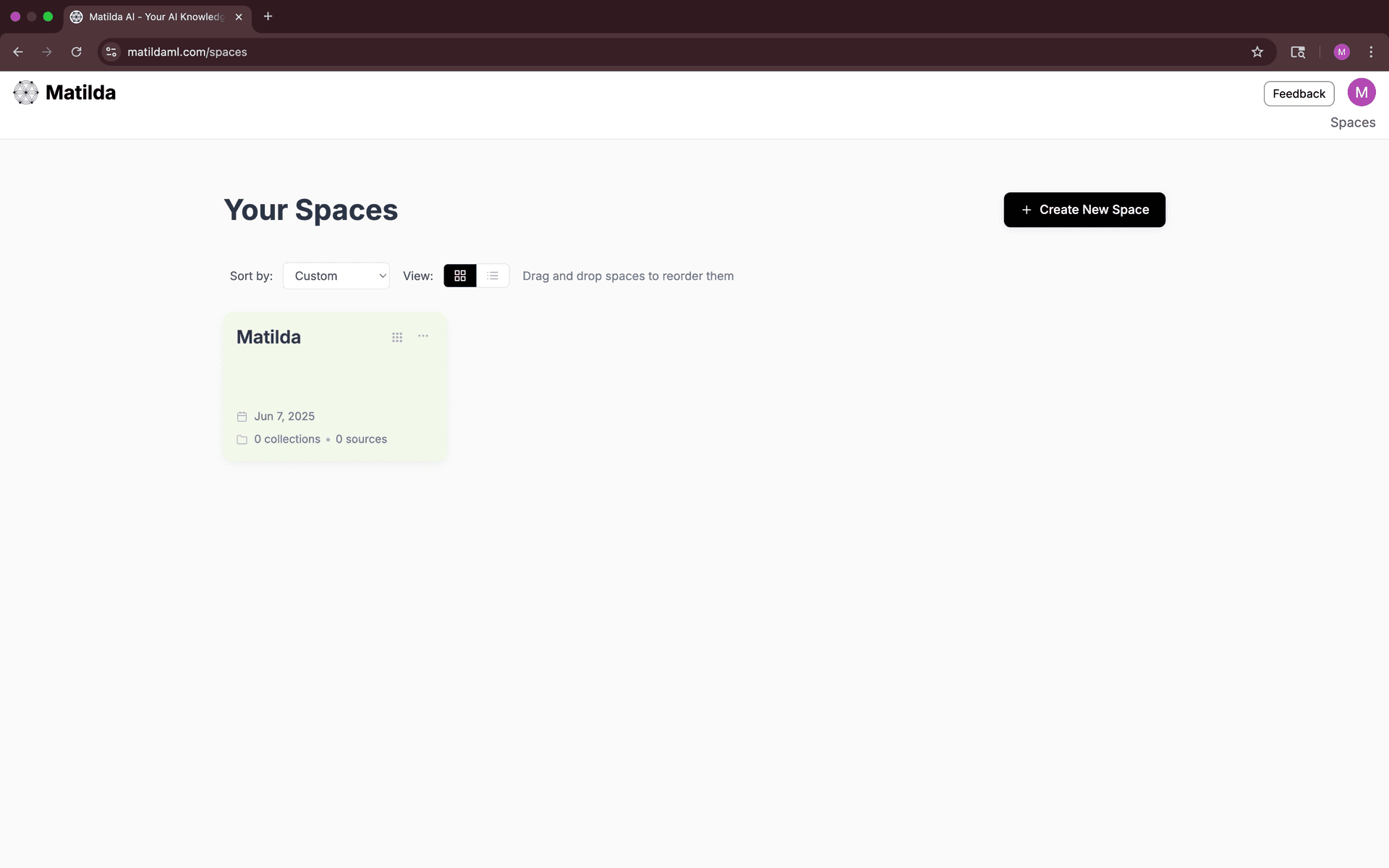
2. Create Your First Space
A Space is a dedicated area for a particular topic—your business, a course, a recipe collection, or anything you like.
- Click Create New Space.
- Give it a name (e.g. "Marketing Materials" or "Family Recipes") and an optional description. For this example we will create a Space for job hunting
- Hit Create.
- Matilda will take you directly into the Library of your new, empty Space.
3. Organize with Collections
Within each Space, you group related files into Collections. Think of these as sub-folders that let you narrow the AI's focus.
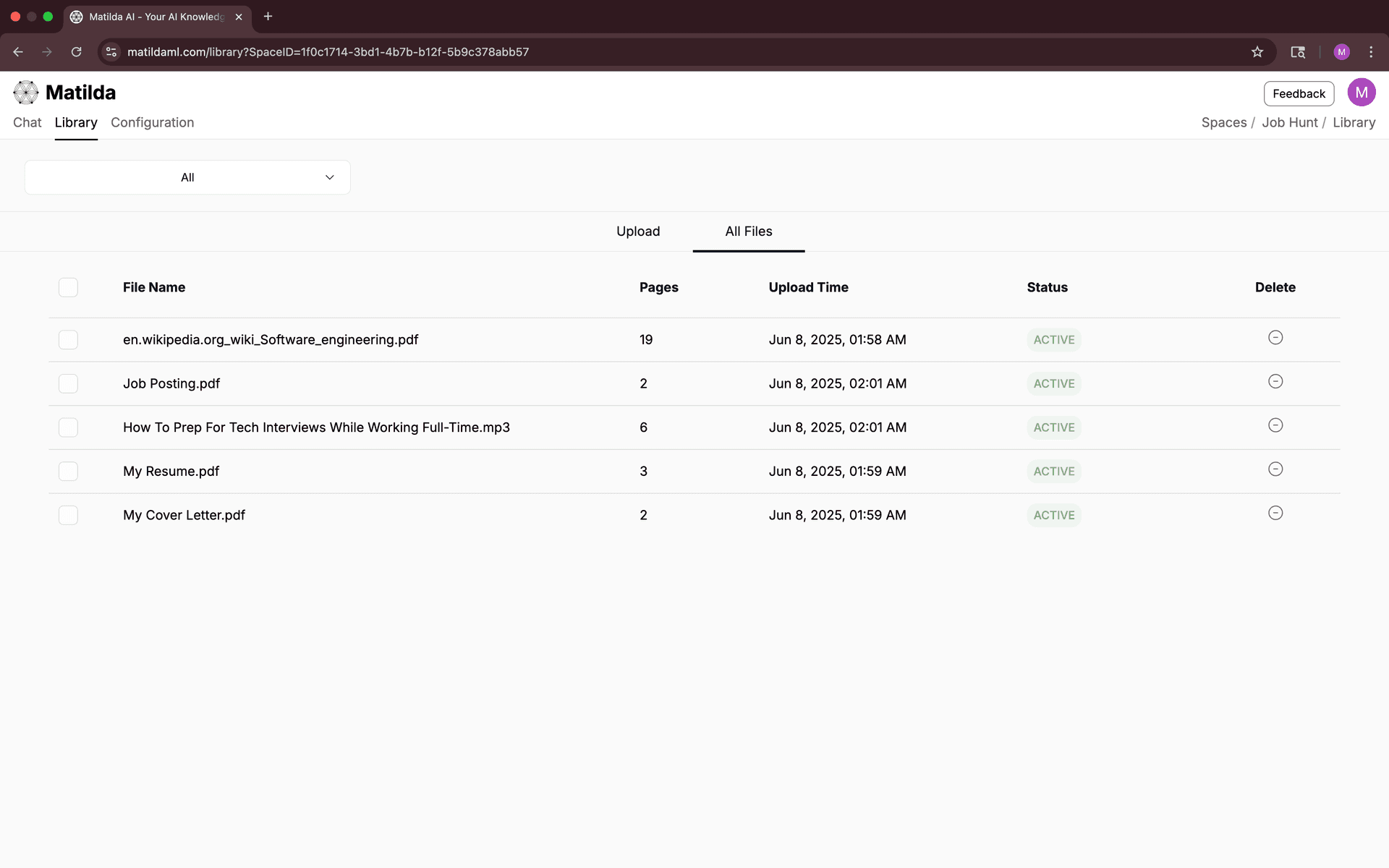
- Matilda auto-creates an All collection that aggregates every file in the Space.
- To upload your sources, click Select Collection, place the name of your new collection (e.g. "Job Descriptions", "Resume & Cover Letters"), Save.
4. Upload Your Files
Now that your Space and Collections exist, it's time to upload your sources.
- Open the Collection where you want to add files.
- Drag-and-drop documents, PDFs, or audio files into the Library panel. You can also add website URLs.
- Watch progress bars tick up—Matilda ingests your files and incorporates them into your knowledge base.
Once complete, you'll see filenames and their status. You can always switch to the All collection to view everything at once. Note that some file types may be converted to PDF.
5. Ask Questions and Get Cited Answers
With content in place, head to the Chat tab. Select the Collection you'd like the AI to reference, then type your question.
When Matilda answers, you'll see:
- Contextual responses based on your own files.
- Clickable citations that open the source at the right page—or play audio at the exact timestamp.
- A citation format will be the citation number, followed by the page number. Hovering over the citation will show the source name and page number.
To the top right, you will notice the Active Sources widget. Here, you will see which citation number corresponds to which source.
6. Tips for Better Results
- Use focused Collections. Narrower collections often yield more precise answers.
- Name your files clearly. Descriptive filenames help you find sources faster.
- Mix media types. PDFs, web pages, and audio can all live side-by-side.
What's Next?
You've now built your first Space, organized it with Collections, and had your first AI-powered conversation complete with traceable citations. To go further:
- Explore sharing options to share your own Spaces or join your friend's Spaces.
- Check out our upcoming posts on creating songs from your Matilda conversations and leveraging Swift, Insight, and Sage modes.
Happy exploring! If you run into any questions, we are always here to help at service@matildaml.com.